
Asking for a tax invoice when you buy a NosFerry ticket
The NosFerry checkout has a checkbox for requesting an invoice with a Cabo Verde tax number. The NIF sets the type, and the invoice arrives by email.
Buying a ferry ticket on nosferry.com can give you two documents, and they’re easy to mix up. The payment receipt is automatic: as soon as the payment goes through, the success screen offers it for download. The tax invoice is the official document, issued with a Cabo Verde tax number (the NIF) on it. That’s the one a company needs to record the trip as an expense. This post is about how you ask for it.
Nôs Ferry needed to sell tickets online. Until then everything went through the counter at the port, including passengers who needed an invoice in their company’s name. Selling online took pressure off the counter, but only for the cases the website could handle, and the tax invoice is one of them.
This is the third post about the public side of NosFerry. The first is about buying tickets online and the second about My Tickets.
A checkbox on the address step
The checkout asks for contact details first, then an address. Right below the address there’s a checkbox: “I need an invoice with tax details”. Leave it unticked and the purchase goes on as usual. Tick it and a “Tax details” card opens with four fields: tax ID, type, tax name and tax address.
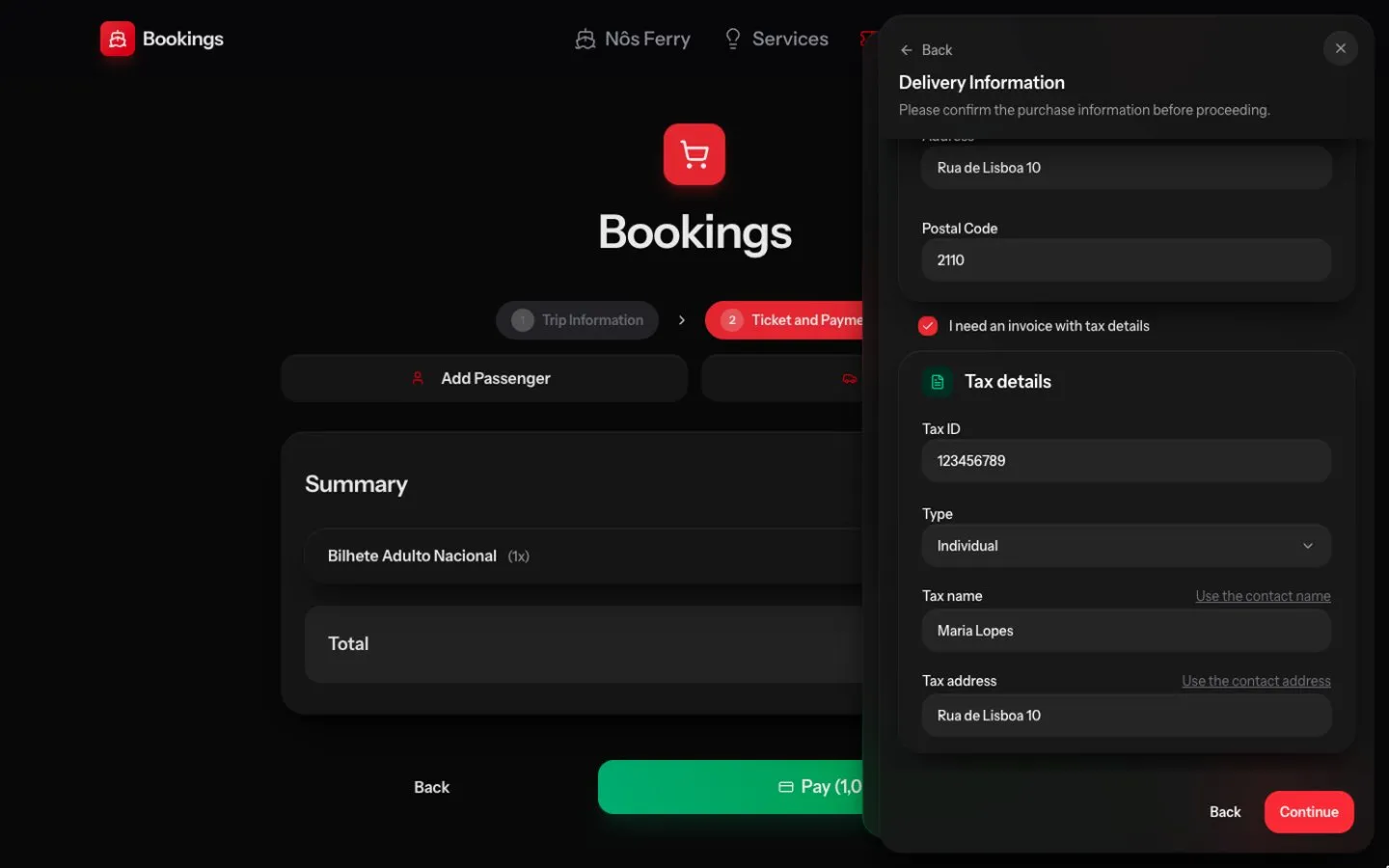
The tax ID is the NIF, which has nine digits. The form reads the first one and picks the type for you. A NIF that starts with 1 belongs to a person, so the type becomes Individual. One that starts with 2 or 3 belongs to a company, so it becomes Company. In the screenshot, the made-up NIF 123456789 set the type to Individual without anyone opening the dropdown.
When the invoice is in your own name, the tax name and address are usually what you typed a step earlier. That’s why each field has a shortcut above it: “Use the contact name” copies the name from the contact step, and “Use the contact address” copies the address. For a company invoice, you type the company’s name and address instead.
When the NIF is already known
Some NIFs belong to clients NosFerry has already verified. Type one of those and the form finds the client, fills in the tax name by itself, and shows a short note: to change the tax ID or the tax name, contact support. So the invoice carries the name on record, and changing it goes through support rather than the checkout.
I’m not showing that state here, because a screenshot of it would show a real client’s details.
After the payment
Paying works the same with or without the checkbox, and it ends on the same screen: the reference, the amount, and the button that downloads the payment receipt.
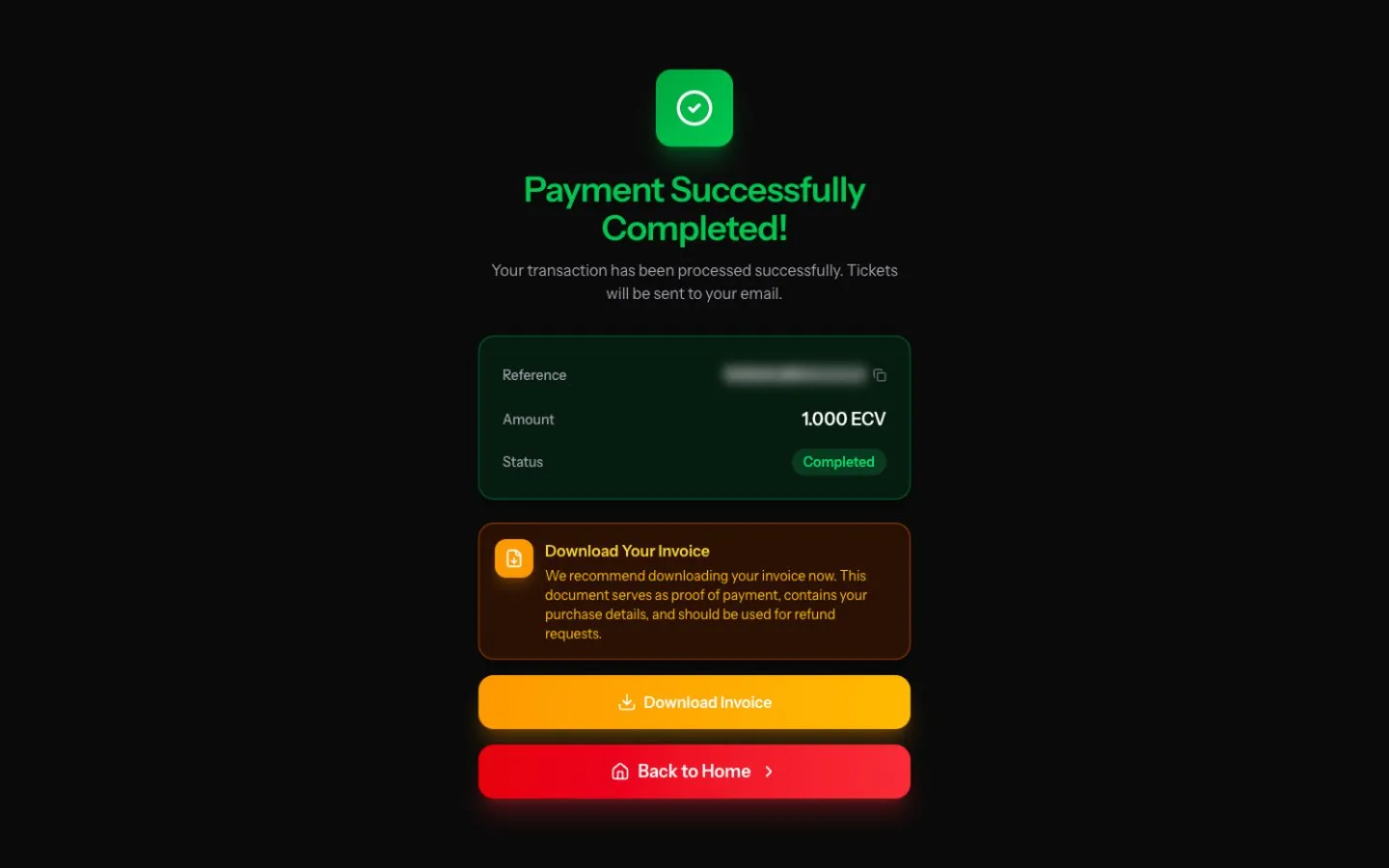
The tax invoice isn’t on that screen, because it isn’t automatic. The request goes to the NosFerry team, they issue the invoice, and it arrives by email with the PDF attached, in the language the purchase was made in. Buy in French and the email comes in French.
A request can also be cancelled, either by the team or because the sale itself was cancelled or refunded. Either way, the buyer gets an email saying so. Cancelling the invoice request doesn’t undo the purchase or the tickets.
There’s no page where you can follow the request, and no email confirming that it arrived. The next thing you hear is either the invoice or the cancellation notice.
In closing
A passenger who needs an invoice with a NIF now asks for it in the same checkout as everyone else, with one checkbox and four fields, and the counter no longer has to handle it. Tickets are on sale at nosferry.com.